
In this post, I would like to go through steps to create a helm chart to package an application to deploy into Kubernetes using helm3. Helm v3 provides an easy way to create a chart with pre-defined templates by following all the best practices. This way we don’t need to create a chart from scratch.
Before you begin
- You should be familiar with deploying applications to Kubernetes using manifest files.
- You should be familiar with Helm, its benefits.
- How to use helm to deploy charts to Kubernetes
- I am using one of my spring boot demo application in this chart. I will briefly explain in the next section. If you are interested, you can find source code for the application in my git repo.
Application
I would like to create helm chart for my sample application. It is a simple spring boot application, which exposes a REST endpoint (/api/demo). This will return configuration properties from application properties and environment variables.
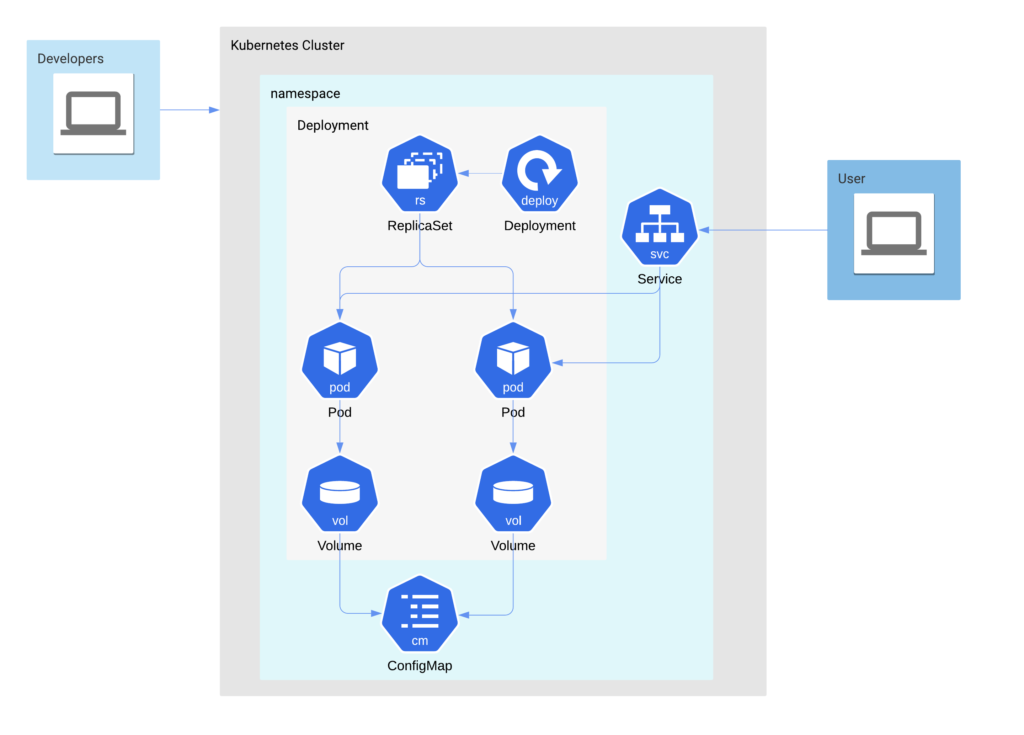
These are the Kubernetes Objects required to deploy and expose my deployment
- ConfigMap – Which provides application.properties file as volume to Pods
- Service – The deployment is exposed as Service (preferably NodePort/LoadBalancer for external access, not considering ingress for simplicity)
- Deployment – Deployment with 1 or more replicas of pods. Attached with ConfigMap as volume.
Apart from the above, i would like to add horizontal pod autoscaling (hpa) feature as well. And make few properties as configurable like resources, service type, env variables, volumes etc..
Installation
Install helm CLI (version >3.x) if not already done so. Follow the steps described in the official documentation.
Run the below command to ensure the version.
helm version --short
Create the chart
Go to the directory where you would like to create the chart, ex: ~/workspace.
Run the below command, which creates a chart with pre-defined templates. Use the name of the chart as your application/module name.
Chart names should be lower case letters and numbers. Words may be separated with dashes (-).
helm create <name>

helm create chartexample
This will create the folder with the name of the chart in the current working directory.
Change to the newly created directory (chartexample) and view the contents
cd chartexample

tree
.
├── Chart.yaml
├── charts
├── templates
│   ├── NOTES.txt
│   ├── _helpers.tpl
│   ├── deployment.yaml
│   ├── hpa.yaml
│   ├── ingress.yaml
│   ├── service.yaml
│   ├── serviceaccount.yaml
│   └── tests
│       └── test-connection.yaml
└── values.yaml
- Chart.yaml
- This defines the chart and its key properties.
- values.yaml
- Define all the configurable properties for the chart deployment. When installing an application using the chart, the user can supply their own values for the properties defined in this
values.yaml.
- Define all the configurable properties for the chart deployment. When installing an application using the chart, the user can supply their own values for the properties defined in this
- charts
- You may add any dependent chart(s) into this directory
- templates
- A directory of templates that, when combined with values, will generate valid Kubernetes manifest files. The templates are written using Go Template Language.
Chart.yaml
apiVersion: v2– v2 represents helm3 compatible chartsname: chartexample– name of the charttype: application– The default is application. Other supported value isLibrary.version: 0.1.0– This is the chart version, increment this version if you change the app version or any change to the deployment templates.appVersion: 1.16.0– Your application version (can be container image tag). Change whenever there is any change to the application.
Apart from the above, there are many optional fields available like kubeVersion to provide compatible Kubernetes Version for the chart, dependencies a list of charts that our chart depends on, and so on. Please check out the official documentation for more information.
values.yaml
The default configuration values for this chart. This comes with a pre-defined set of properties that are used in the templates. You may add or modify them, remember to change the templates which depend on these default properties. However, I suggest not to change the names/structure of the default properties provided.
In the example, i would like to change the below in values.yaml
Observe, I am only changing the values of the properties like image.repository value or serviceAccount.create set to ‘false’, resources, and autoscaling configuration (hpa).
image:
  repository: harivemula/kubeconfigexample
...
serviceAccount:
  create: false
...

resources:
  limits:
    cpu: 500m
    memory: 750Mi
  requests:
    cpu: 500m
    memory: 750Mi

...
autoscaling:
  enabled: true
  minReplicas: 1
  maxReplicas: 2
  targetCPUUtilizationPercentage: 80
I would like use few more properties in my templates, adding these at the end of values.yaml.
port:
  containerPort: 8080

volumeMounts:
  - name: cache-volume
    mountPath: /cache

volumes:
  - name: cache-volume
    emptyDir: {}

env:
  - name: DEMO_ENV_PROP
    value: mydemoenvproperty
  - name: ENV_PROP
    value: justenvprop
In the above content, i have used the same structure of kubernetes manifest for adding new properties, however it is not manadatory. It all depends on how you want to use the property in templates.
Example, we have defined port.containerPort in the above example, and going to use this in the templates/deployments.yaml as
ports:
- name: http
  containerPort: {{ .Values.port.containerPort }}
Instead you may define simply as container_port: 8080 in values.yaml and refer it in templates/deployment.yaml like below
ports:
- name: http
  containerPort: {{ .Values.container_port }}
Templates
By default, templates directory contains template files for below Kubernetes objects. The output of these templates is going to be Kubernetes manifest yaml files. Having this templating mechanism helps you not to modify anything in the actual manifests when you change your image version or environment-specific values when installing applications etc.., instead you can provide your configurations via external config (values.yaml).
- deployment
- service
- service account
- ingress
- horizontal pod autoscaler
You may add any other objects you need, like configmap.
The _helpers.tpl file defines named templates.
For example, it defines a template to derive the name of the chart. Check out the official documentation for more details.
{{- define  "chartexample.name" -}}
{{- default .Chart.Name .Values.nameOverride | trunc  63 | trimSuffix  "-" }}
{{- end }}
Let us understand some basics of the templates provided. Take a look at the files in the templates directory.
For example, the contents of the service.yaml looks like below.
apiVersion: v1
kind: Service
metadata:
  name: {{ include "chartexample.fullname" . }}
  labels:
    {{- include "chartexample.labels" . | nindent 4 }}
spec:
  type: {{ .Values.service.type }}
  ports:
    - port: {{ .Values.service.port }}
      targetPort: http
      protocol: TCP
      name: http
  selector:
    {{- include "chartexample.selectorLabels" . | nindent 4 }}
If you observe the service name, port, labels, selector labels, and service type are parameterized and these values are either derived or passed from values.yaml.
nameis parameterized by a derived template{{ include "chartexample.fullname" . }}- Take a look at
_helpers.tplforchartexample.fullnamedefinition.
- Take a look at
typeis parameterized by a value from values.yaml{{ .Values.service.type }}- Take a look at
values.yamlforservicetypeproperty.
- Take a look at
This makes it clear that when we create a template for an object, we should consider all possible combinations a user might need to provide as inputs and make them available in values.yaml and rest either use named templates to derive or keep static values.
Modifying the templates
Modify the provided templates according to your requirement. In this example, modified the deployment.yaml with highlighted fields below.
...
          livenessProbe:
            httpGet:
              path: /api/demo
              port: http
          readinessProbe:
            httpGet:
              path: /api/demo
              port: http
...
          ports:
            - name: http
              containerPort: {{ .Values.port.containerPort }}
              protocol: TCP
...
          env:
            {{- toYaml .Values.env | nindent 12 }}
...
          volumeMounts:
            - name: config-volume
              mountPath: /workspace/config
            {{- toYaml .Values.volumeMounts | nindent 12 }}
...
      volumes:
        - name: config-volume
          configMap:
            name: {{ .Release.Name }}-samplespringconfig
        {{- toYaml .Values.volumes | nindent 8 }}

...
In the above lets take couple of examples
env:
{{- toYaml .Values.env | nindent 12 }}env: As in my values.yaml, I have defined the same structure it should be in Kubernetes manifest, now I am trying to simply get the env property values and copying here as yaml output with indent 12.
volumes:
  - name: config-volume
    configMap:
      name: {{ .Release.Name }}-samplespringconfig
{{- toYaml .Values.volumes | nindent 8 }}volumes: I have defined a volume with configmap as a source here in the template directly and if any other volumes defined on values.yaml, all will be added here as yaml with indent 8.
And the name of the configmap is based on the chart release name.
Below is the modified deployments.yaml
apiVersion: apps/v1
kind: Deployment
metadata:
  name: {{ include "chartexample.fullname" . }}
  labels:
    {{- include "chartexample.labels" . | nindent 4 }}
spec:
{{- if not .Values.autoscaling.enabled }}
  replicas: {{ .Values.replicaCount }}
{{- end }}
  selector:
    matchLabels:
      {{- include "chartexample.selectorLabels" . | nindent 6 }}
  template:
    metadata:
    {{- with .Values.podAnnotations }}
      annotations:
        {{- toYaml . | nindent 8 }}
    {{- end }}
      labels:
        {{- include "chartexample.selectorLabels" . | nindent 8 }}
    spec:
      {{- with .Values.imagePullSecrets }}
      imagePullSecrets:
        {{- toYaml . | nindent 8 }}
      {{- end }}
      serviceAccountName: {{ include "chartexample.serviceAccountName" . }}
      securityContext:
        {{- toYaml .Values.podSecurityContext | nindent 8 }}
      containers:
        - name: {{ .Chart.Name }}
          securityContext:
            {{- toYaml .Values.securityContext | nindent 12 }}
          image: "{{ .Values.image.repository }}:{{ .Values.image.tag | default .Chart.AppVersion }}"
          imagePullPolicy: {{ .Values.image.pullPolicy }}
          ports:
            - name: http
              containerPort: {{ .Values.port.containerPort }}
              protocol: TCP
          livenessProbe:
            httpGet:
              path: /api/demo
              port: http
          readinessProbe:
            httpGet:
              path: /api/demo
              port: http
          resources:
            {{- toYaml .Values.resources | nindent 12 }}
          env:
            {{- toYaml .Values.env | nindent 12 }}
          volumeMounts:
            - name: config-volume
              mountPath: /workspace/config
            {{- toYaml .Values.volumeMounts | nindent 12 }}
      volumes:
        - name: config-volume
          configMap:
            name: {{ .Release.Name }}-samplespringconfig
        {{- toYaml .Values.volumes | nindent 8 }}

      {{- with .Values.nodeSelector }}
      nodeSelector:
        {{- toYaml . | nindent 8 }}
      {{- end }}
      {{- with .Values.affinity }}
      affinity:
        {{- toYaml . | nindent 8 }}
      {{- end }}
      {{- with .Values.tolerations }}
      tolerations:
        {{- toYaml . | nindent 8 }}
      {{- end }}
Adding new object to templates
We can add a template to define Kubernetes manifest for the object that we want to create in the application deployment. ex: configmap
Just to note that as a best practice create a separate template file for every object, do not combine multiple objects into single file.
I would like to create configmap to pass some properties to my application and use the configmap as volume to deployment. For that, I am adding a new file in templates directory as configmap.yaml.
apiVersion: v1
kind: ConfigMap
metadata:
name: {{ .Release.Name }}-samplespringconfig
data:
application.properties: |
demo.file.prop=ValueFromConfig
In the configmap, I am using the name as Release.Name prefix, which is the name we give when we deploy the chart. So, the configmap object name is dynamic.
You can use templates in the data section of configmap as well. However, for this example, I am just using some static value.
Package Chart
Once you have completed with your modifications, you can package the chart.
Before packaging, verify if the chart is well formed by running
helm lint
Run the below to package chart
helm package .
This will package your chart with name < chartname >-< chartversion >.tgz.
Example, chartexample-0.1.0.tgz
Install and Test Chart
You may run the below command to install the application to the Kubernetes cluster. Assuming the Kubernetes context is set to the desired cluster
helm install <chart release name> <chart location/chart directory>

helm install testapp chartexample-0.1.0.tgz
or
helm install testapp chartexample/
To provide your own customized configuration for any values exposed in values.yaml, you can create a yaml with configuration values. In the below, I have created a file with name config.yaml and provided my own values for env variables defined and service type as NodePort. Refer documentation for more information.
service:
  type: NodePort
env:
  - name: DEMO_ENV_PROP
    value: env_prop_test
  - name: ENV_PROP
    value: env_test
Run the below command to install using customized configurations
helm install test-rel -f config.yaml chartexample-0.1.0.tgz
Get your service port, and node IP, test the application by accessing the rest api using curl. Observe the output, the custom values you passed from config.yaml have taken into effect.
curl http://192.168.99.103:30297/api/demo
demo.env.prop:[env_prop_test]
httpProxy:[not set]
httpsProxy:[not set]
demoFileProp:[ValueFromConfig]
ENV_PROP:[env_test]
Chart Repository
You can upload the helm chart to your own chart repository like chartmuseum and refer the repo to install chart to your Kubernetes cluster.
Installing from Repo
I am using Harbor as my private registry to maintain container images and helm charts. I have uploaded this chart to my harbor registry.
Download the Let’s encrypt ca certificate from https://letsencrypt.org/certs/lets-encrypt-x3-cross-signed.pem.txt. Name the file as lets-encrypt-x3-cross-signed.pem.
Run the below command to add helm repository
helm repo add --ca-file lets-encrypt-x3-cross-signed.pem harivemula-harbor https://harbor.galaxy.env2.k8scloud.cf/chartrepo/library
Update the helm repo
helm repo update
Run the below command to install the application using this chart to your cluster.
helm install chartex harivemula-harbor/chartexample
You can download the source code for the chart from git repo